Note: To access our service, you can install any app or player. In this beginner’s tutorial, we will provide examples using the app ( free app), Ibo Player app and the Tivimate app.
How to setup on Fire TV Stick
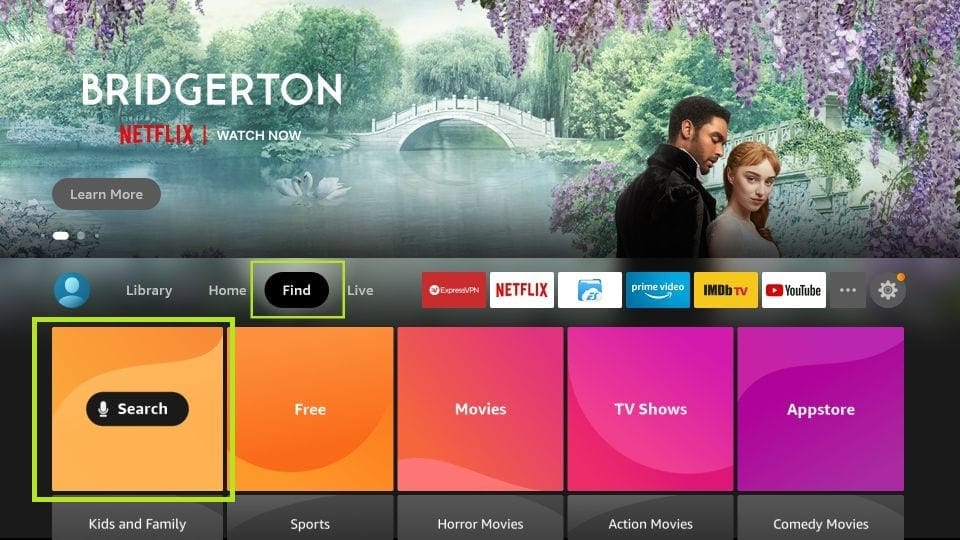
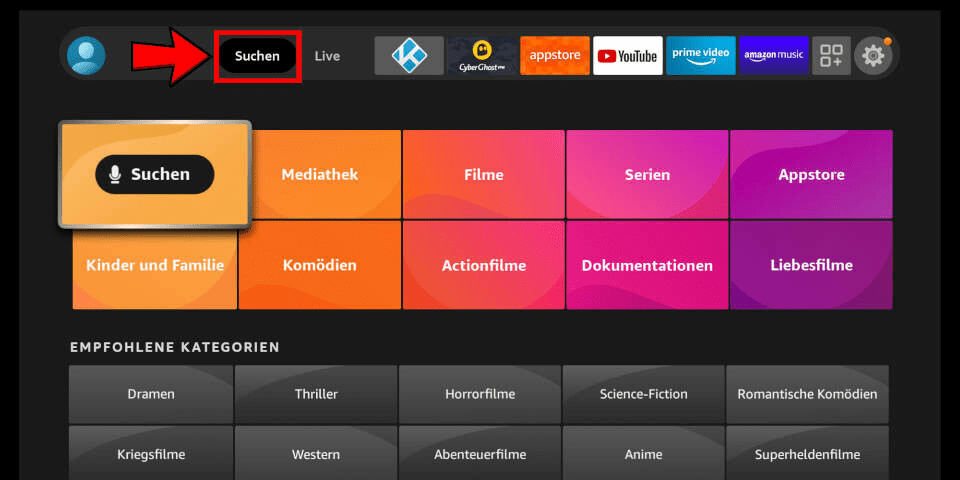
From the home screen of your device, hover over the Find option.
1. We will first install the Downloader app
This app will help you sideload on FireStick (because browser downloads are not allowed)
2. Click the Find > Search option on the home screen of FireStick
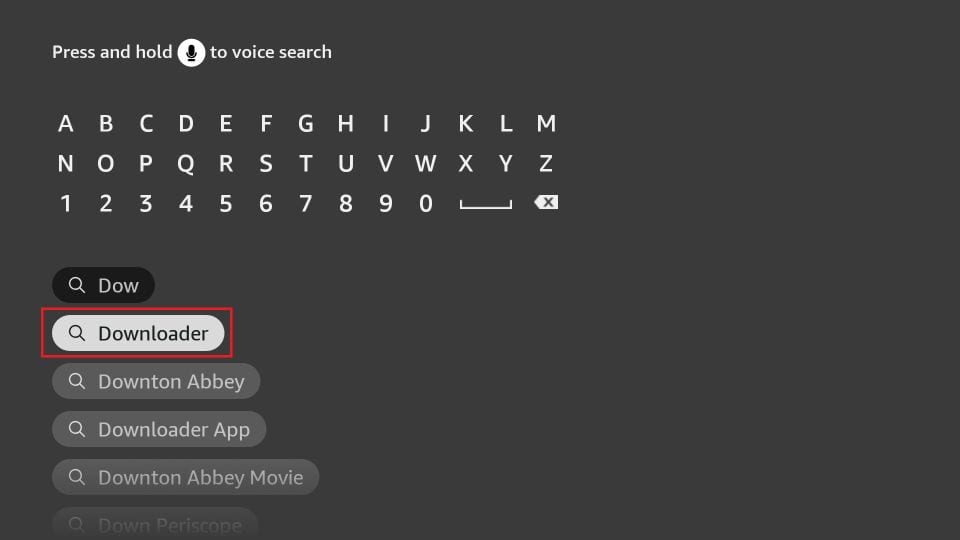
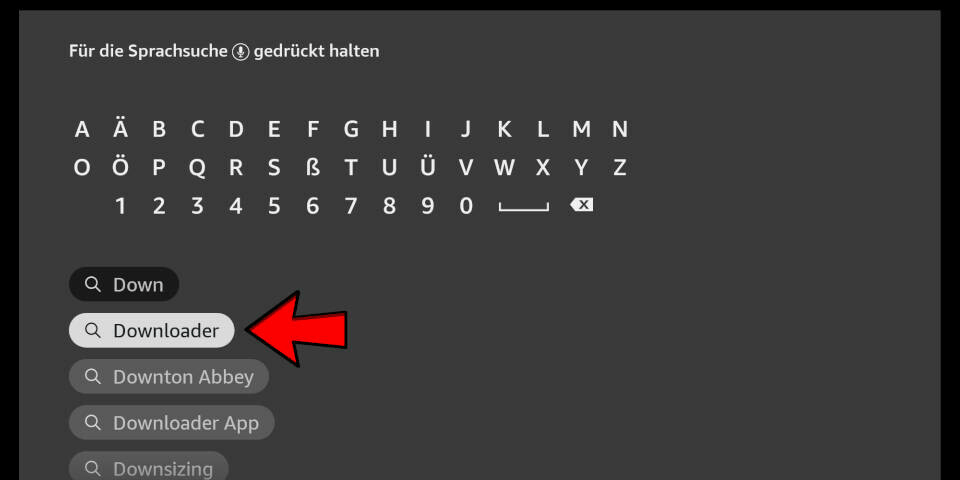
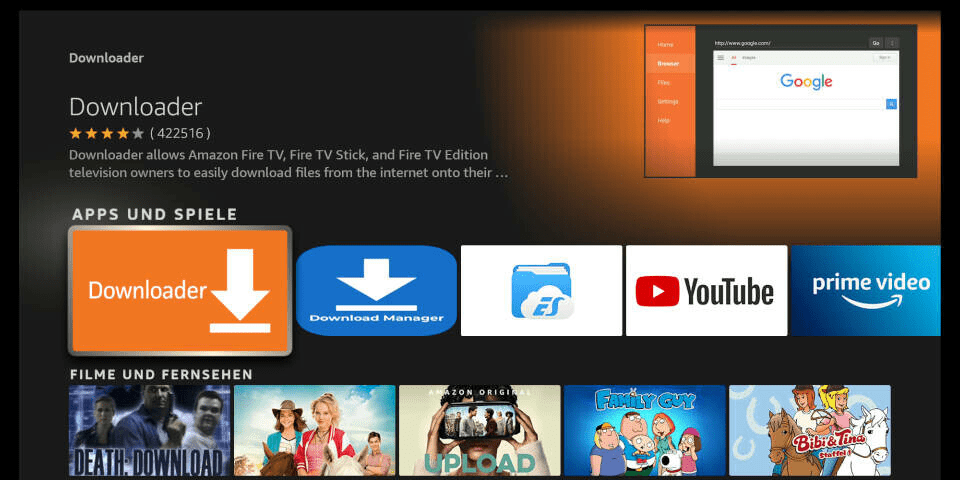
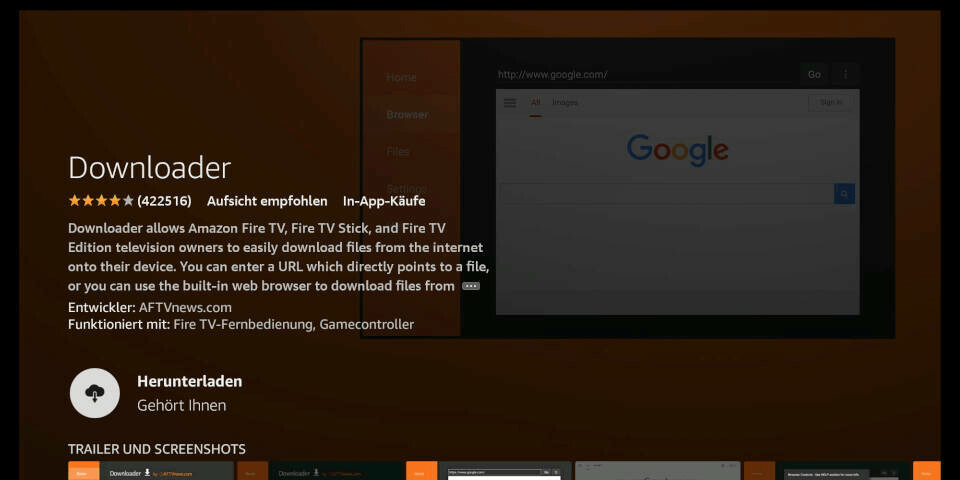
3. Type the name of the app (which is Downloader) Click the Downloader option when it is displayed in the search results Choose the Downloader icon on the following screen and download and install the app
4. Get back to the home screen of FireStick after installing the Downloader app
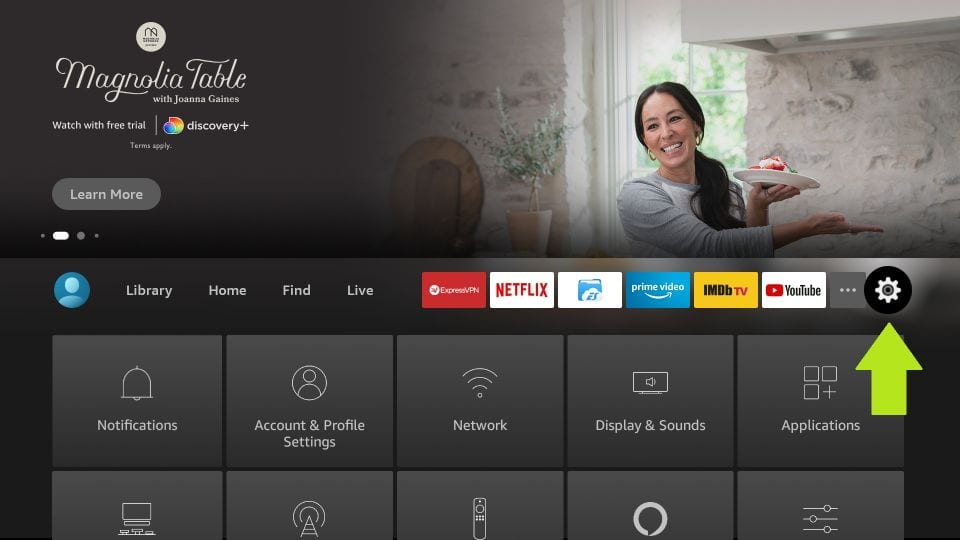
In the menu bar, click Settings
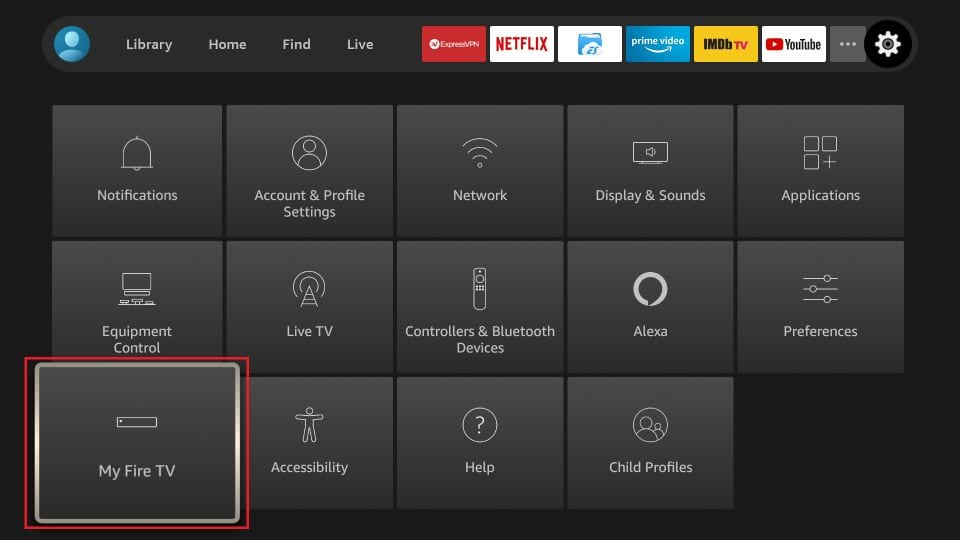
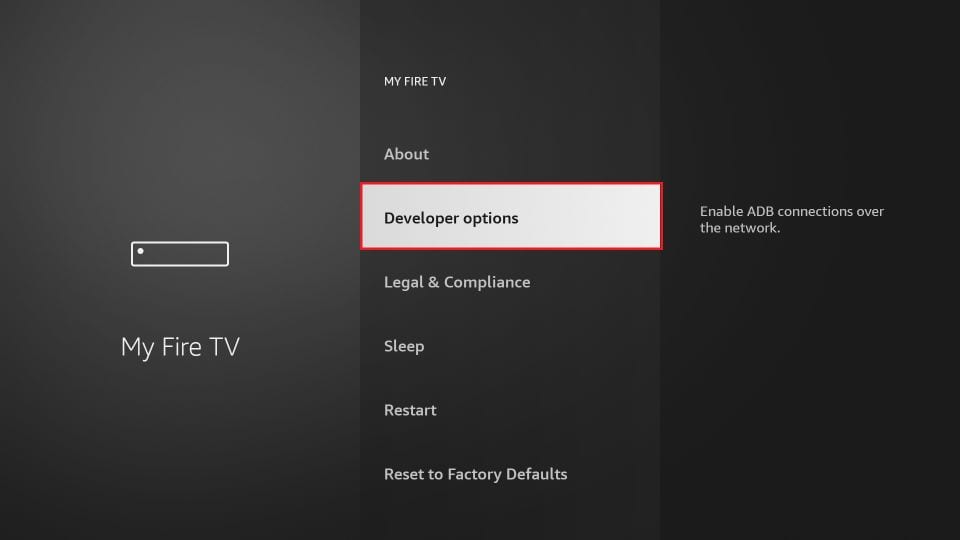
5. In the Settings, choose the option My Fire TV
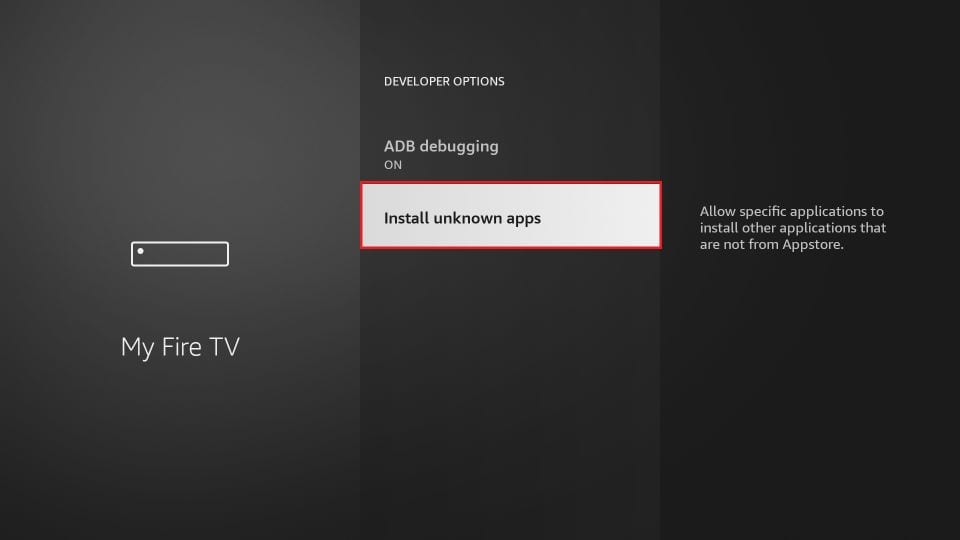
6. When the following set of options are displayed on the next screen, click Developer Options
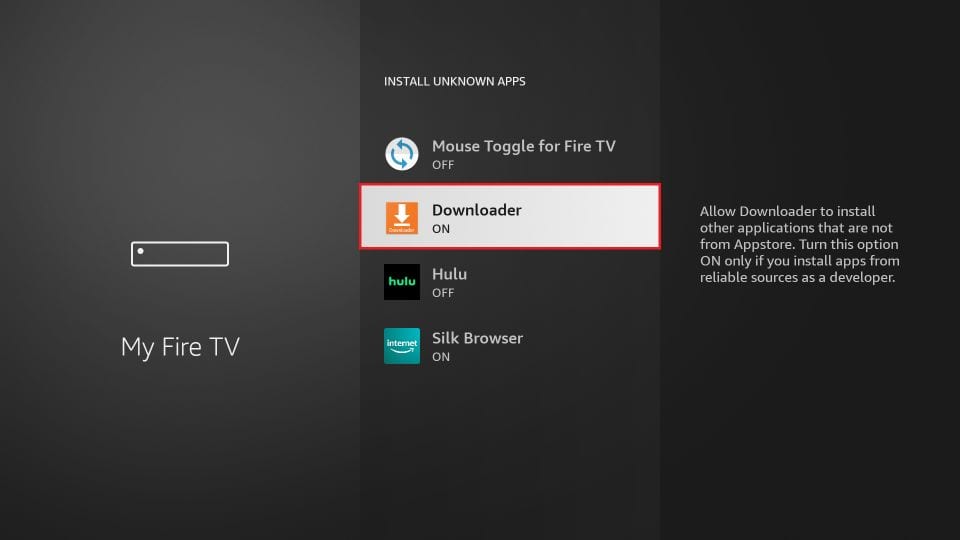
7. Click Install from unknown apps
8. Click Downloader to change the status to ON
With this, you have configured the FireStick settings to allow the installation and other third-party apps. Follow the steps below:
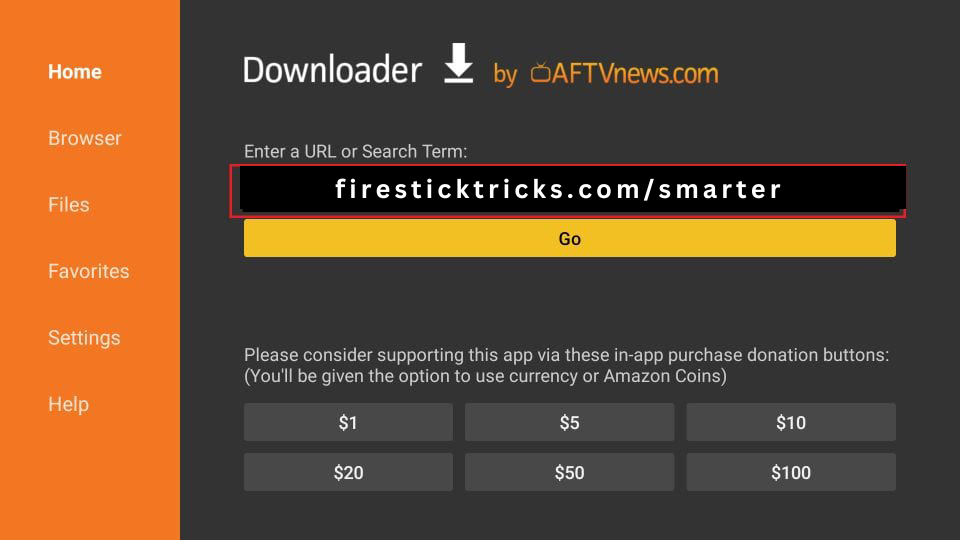
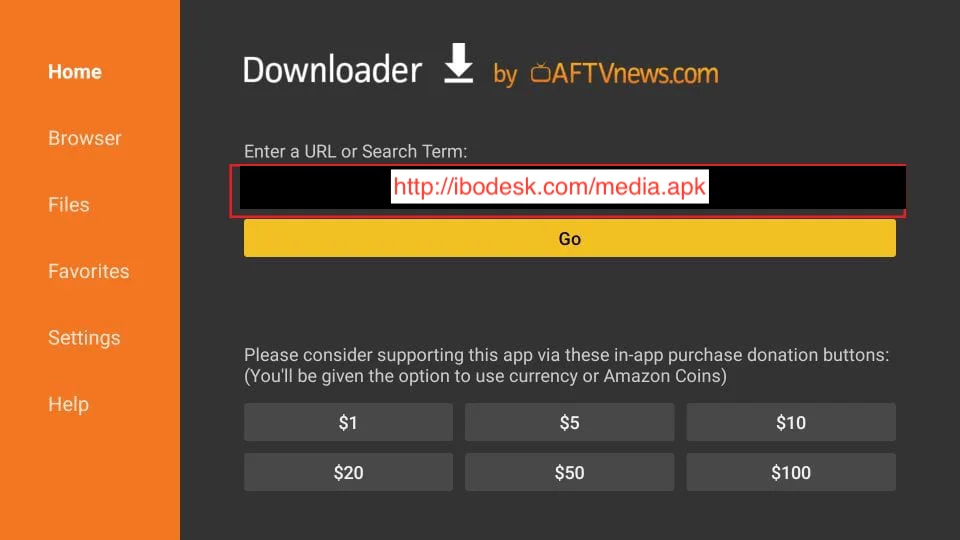
9. You may now open the Downloader app When you run this app for the first time, a set of prompts will appear. Dismiss them until you see the following screen
On this screen, you need to click the URL textbox on the right side (make sure Home option in the left menu is selected) where it says ‘http://’
10. Go ahead and enter the following path on this window: firesticktricks.com/smarterOr Downloader code: firesticktricks.com/smarter
Click GO
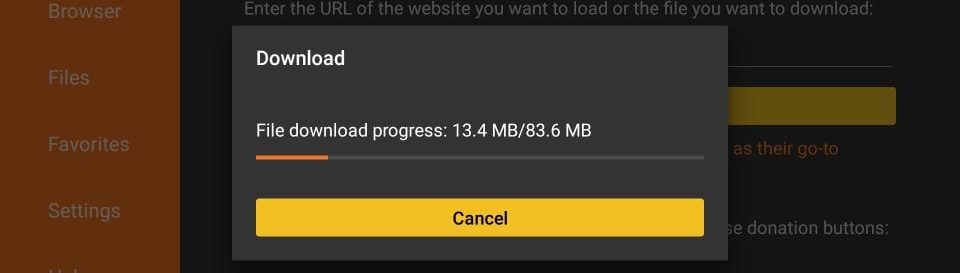
11. Give it a minute or two until the IPTV SMARTERS PRO is downloaded onto your FireStick device
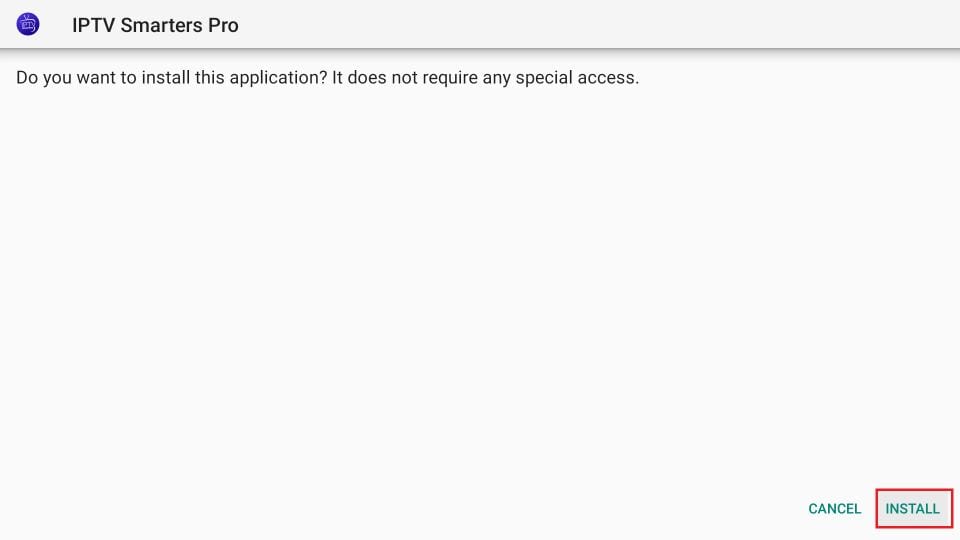
12. When the download has completed, the Downloader app will run the APK file and the installation will start
Click Install
13. Wait for the installation to finish
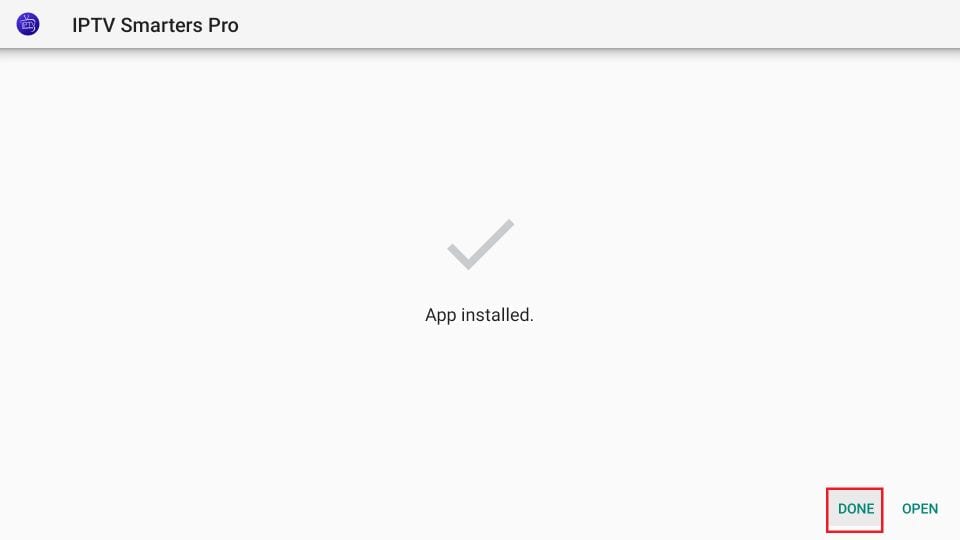
14. Installation is concluded with the App installed notification
You may now choose to click OPEN and get started with IPTV SMARTERS PRO
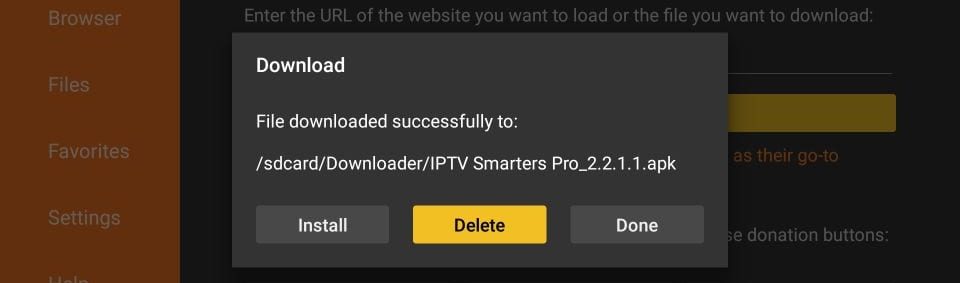
I recommend choosing DONE so that you may first delete the APK file and save some space on the FireStick storage
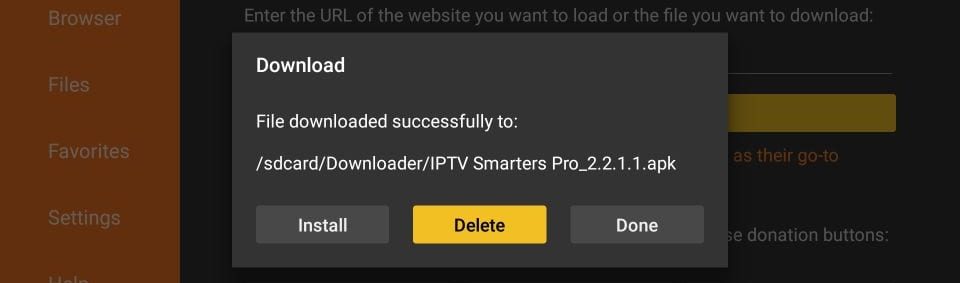
15. If you clicked DONE above, you will be back on the Downloader interface
Click Delete
Great! You now have the IPTV SMARTERS PRO FireStick.
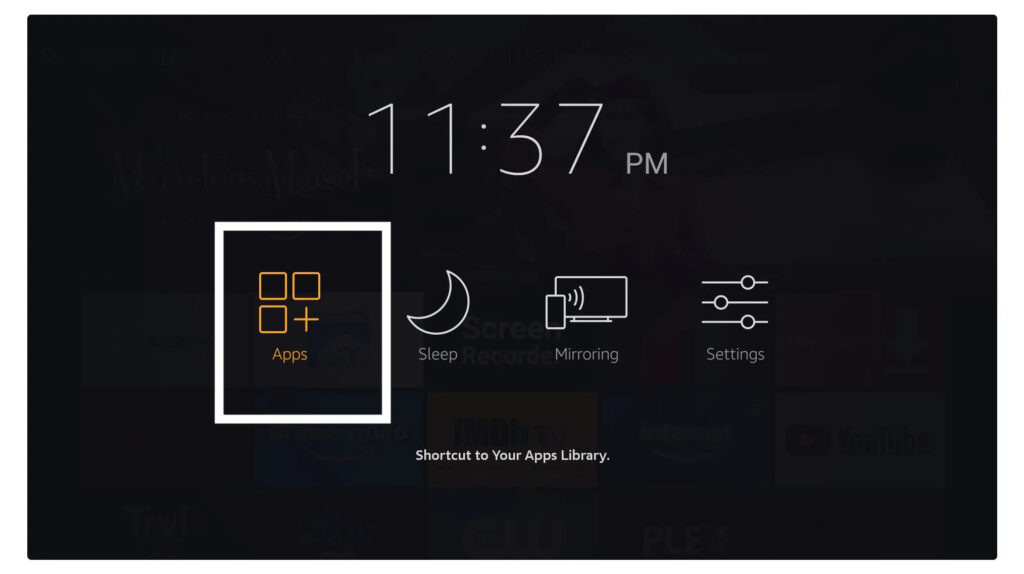
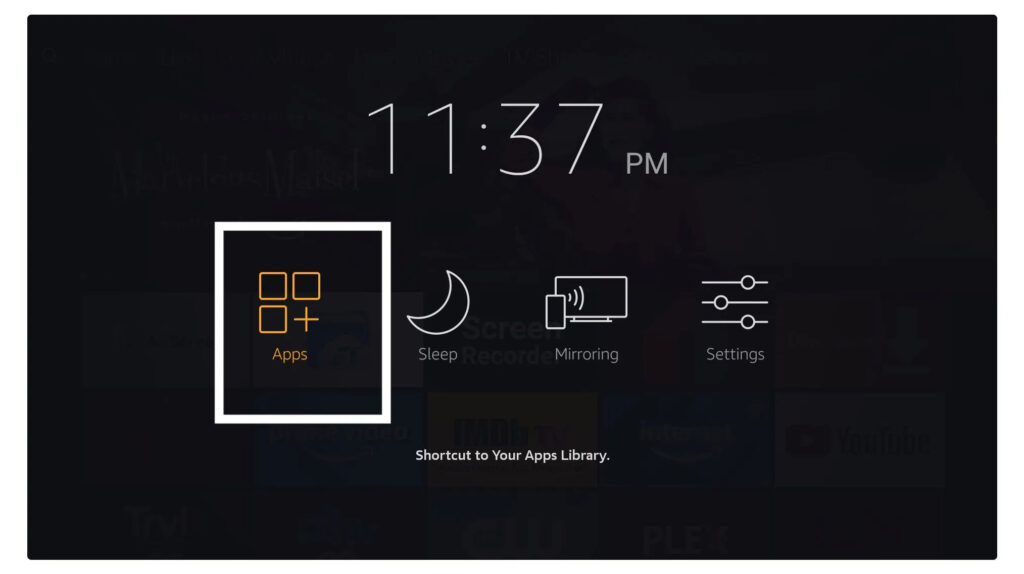
Launch IPTV SMARTERS PRO on Firestick either by going to Your Apps & Channels section or pressing & hold the Home button and then select Apps from the next screen.
Scroll down and you will see the app appears at the bottom so press select to launch it.
When launching it for the first time you will be asked to agree with their user agreement so simply click on the Accept button.
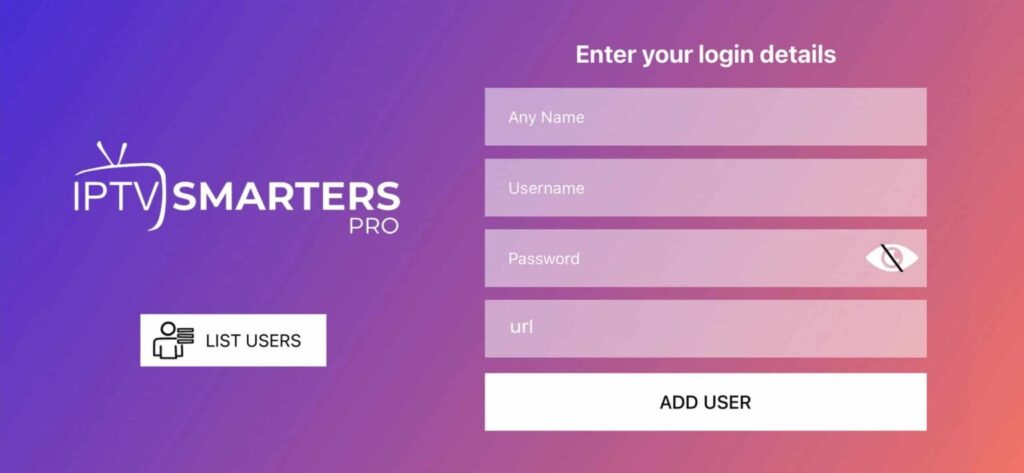
Once it’s done from the next you will be asked to Add a User so for this just click on the Add User button.
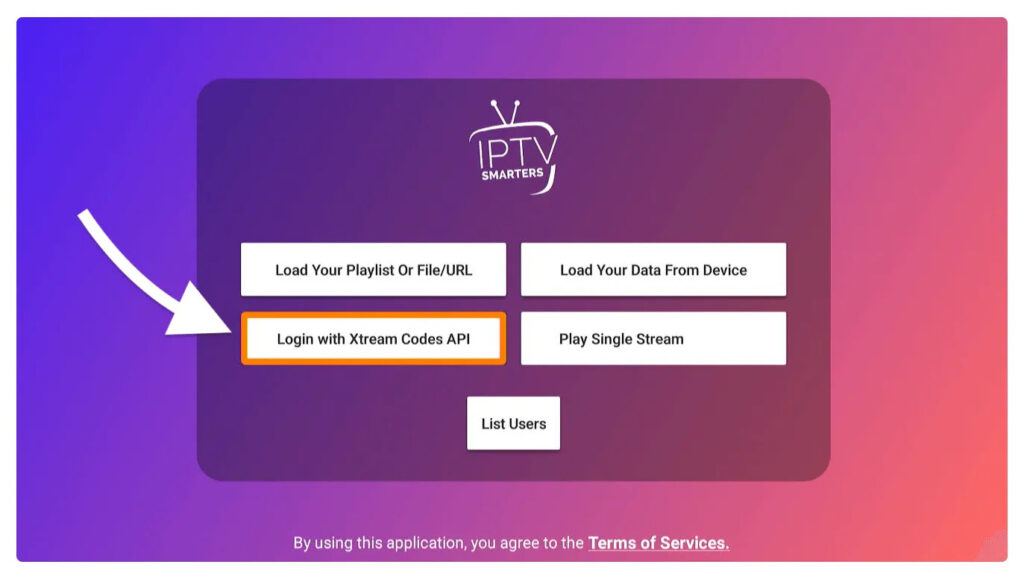
From the next screen, you will notice multiple options to Log Into the Smarters Pro. Now you need to choose Login with Xtreme Codes API which is the fast method.
After that you will notice various fields appear there so you need to fill them as follow:
Any Name: Type the name of your user.
Username: Write the username provided by the DIAMOND IPTV provider.
Password: It is also provided by the DIAMOND IPTV provider.
URL: Just copy the portal URL from the provider and paste it here.
Once you filled every field just click on the Add User and it will create a new profile.
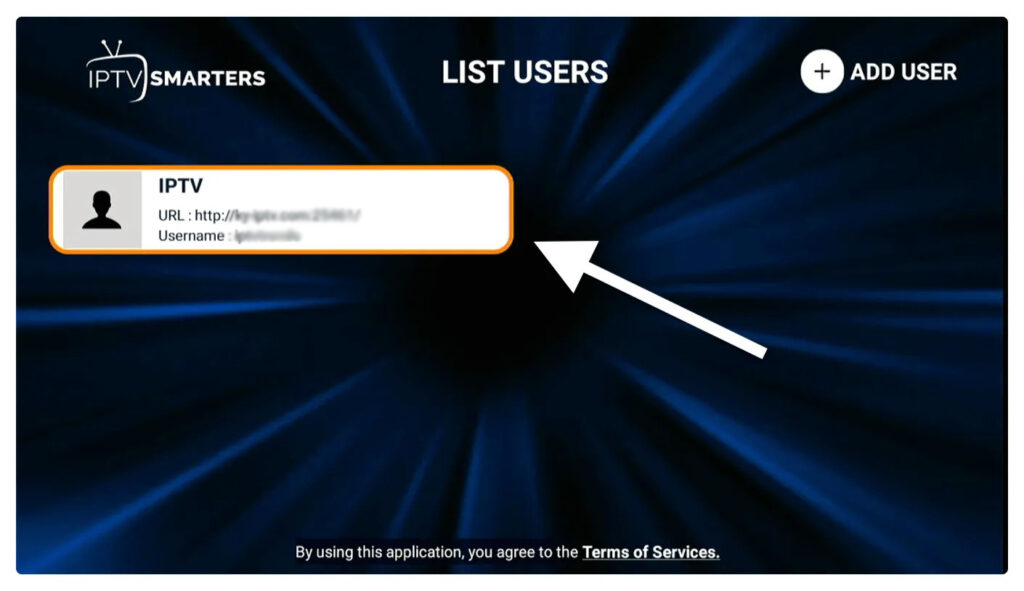
After that, you will notice the user is listed on your screen so click the User that you created.
From the next screen, it shows Downloading Live Channels, Movies, and TV Shows so just wait for a while until it completes.
Once the downloading is completed a simple interface will appear with Live TV, Series, Movies, and other options. Now you just need to select any of these options and then it will Show Content available in that category
How to setup IBO Player Pro on Fire TV Stick
1. Open the Downloader app
On this screen, you need to click the URL textbox on the right side (make sure Home option in the left menu is selected) where it says ‘http://’
2. Go ahead and enter the following path on this window: firesticktricks.com/smarter ( Or, you can simply enter the downloader code:firesticktricks.com/smarter)
Click GO
3. Give it a minute or two until the IBO Player app is downloaded onto your FireStick device
4. When the download has completed, the Downloader app will run the APK file and the installation will start
Click Install
5. Wait for the installation to finish
6. Installation is concluded with the App installed notification
You may now choose to click OPEN and get started with IBO Player
I recommend choosing DONE so that you may first delete the APK file and save some space on the FireStick storage
7. If you clicked DONE above, you will be back on the Downloader interface
Click Delete
Great! You now have the IBO Player app on FireStick.
Launch IBO Player on Firestick either by going to Your Apps & Channels section or pressing & hold the Home button and then select Apps from the next screen.
Scroll down and you will see the app appears at the bottom so press select to launch it.
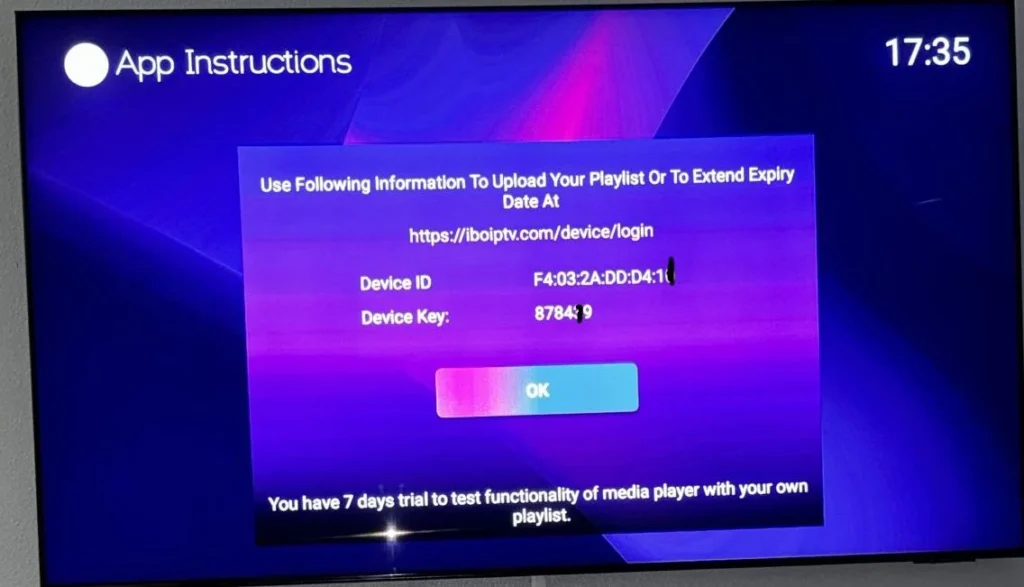
Upon the initial launch of the IBO Player app, you will encounter a screen displaying the MAC address and DEVICE KEY. Utilizing these two pieces of information, you can easily proceed with the service installation.
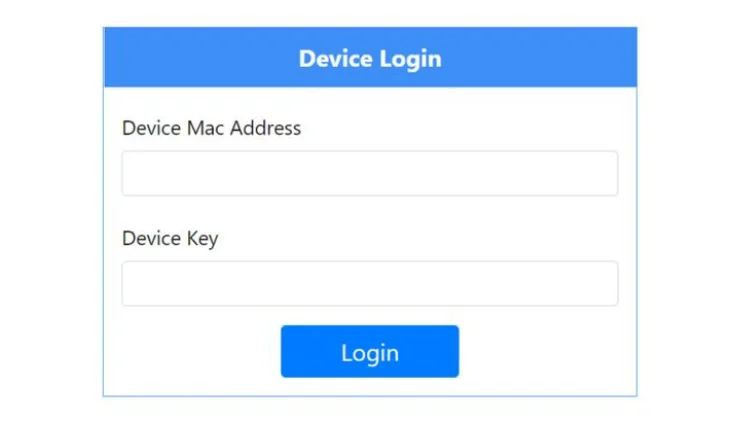
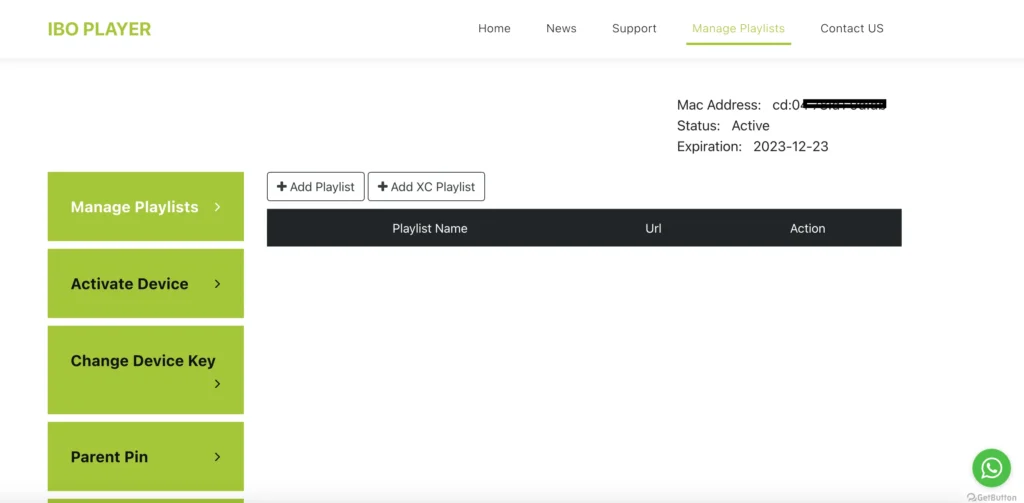
1. To add the service go to this link using your phone or your laptop: https://iboplayer.com/device/login
Enter the information displayed on the TV in the required fields (mac and Key) to connect to the application.
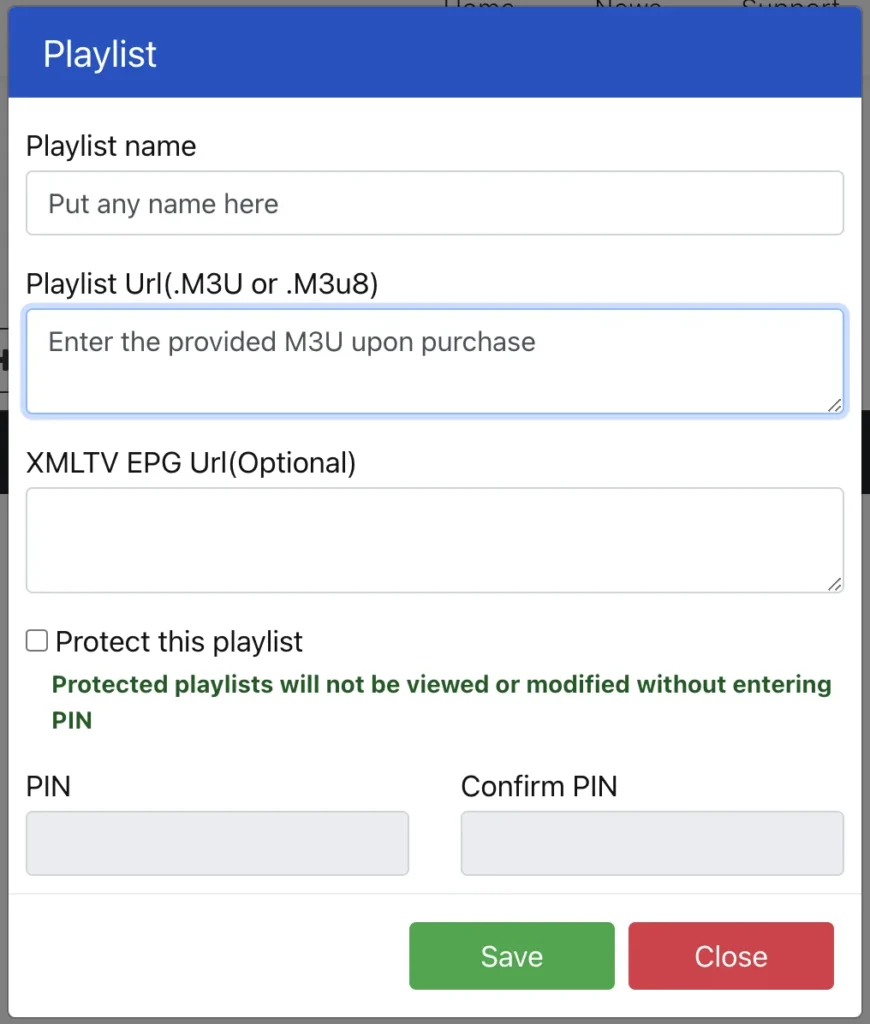
2. Once connected, you have two configuration methods, either with the m3u link (+ Add playlist) or with Xtream detail code (+ add XC playlist).
3. Click “Add Playlist” and insert the M3U link in the Playlist URL (provided via email after purchase).
As a final step, go back to your TV, restart the app, and the service will work for you.
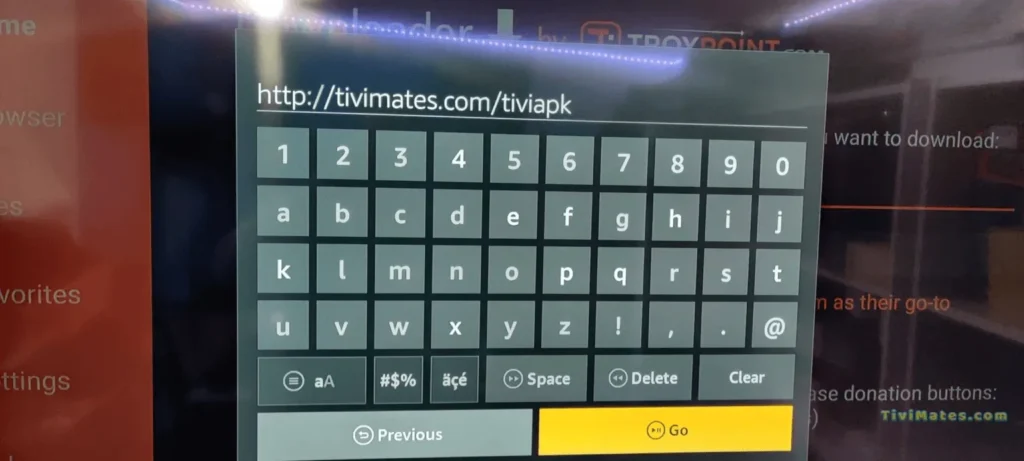
FORTIVIMATE
1. Type the following URL exactly as shown here: https://tivimates.com/tiviapk and click Go.
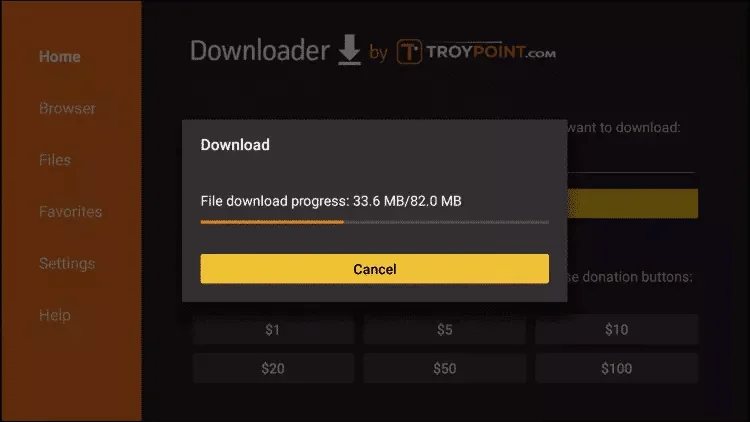
2. Wait for file to download. Wait for the file download to finish
1) In the Android TV or Fire TV main menu, navigate to the “Search” entry and select the “Search” tile.
PLEASE NOTE: These are third party apps that are needed to stream content from our servers. You may also try searching “IPTV” in the app store, there are many different options. Most require a lifetime subscription of about $10 USD.
2) Enter the first letters of the word “Downloader” as a search term and select the corresponding search result using the arrow keys and the enter key on your remote control.
3) Open the entry for the Fire TV Downloader app.
4) Press Enter on your remote control to start the installation
5) App is downloading. Open the app after installation.
6) When you start the app for the first time, you must grant the downloader access to your file system. Select the option “Allow”.
7) On the downloader’s homepage you can enter a number directly in the middle of the screen. You will receive this from us after purchase or when using a test account. Enter the number and press “Go”.
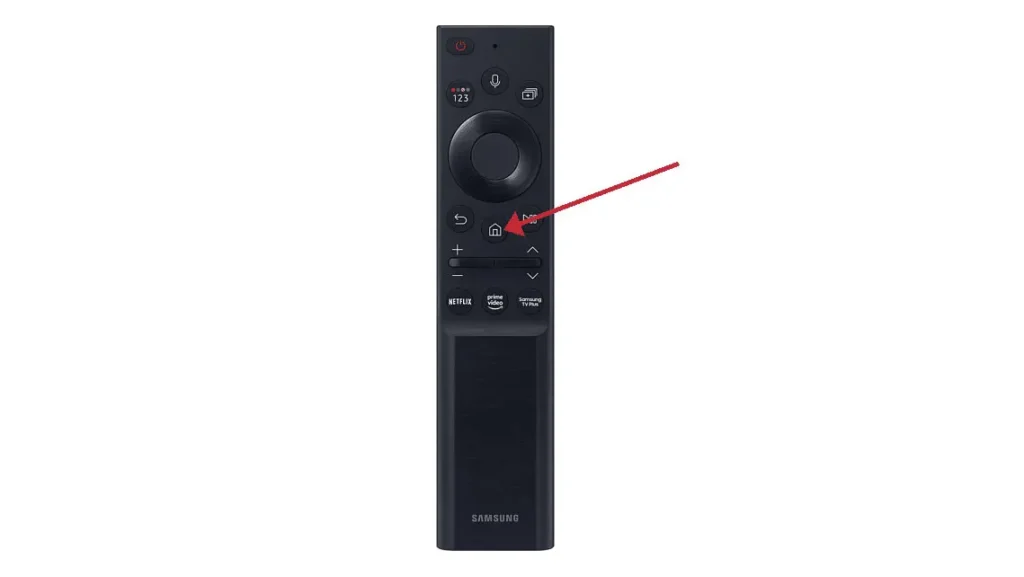
1)Press the ‘Home’ button on your remote, which is typically represented by a house icon or a 3D cube
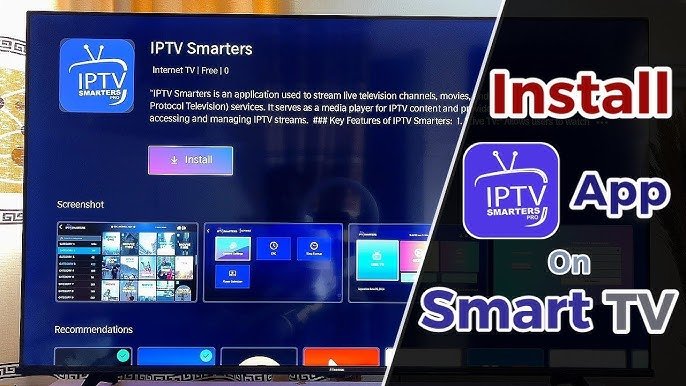
2) Navigate to the ‘Apps’ section and search for IPTV Smarters Pro. Once you find the app, select it and proceed with the installation.”
3) After the installation is finished, launch the IPTV Smarters Pro app by selecting ‘Open,’ then enter your login credentials to get started
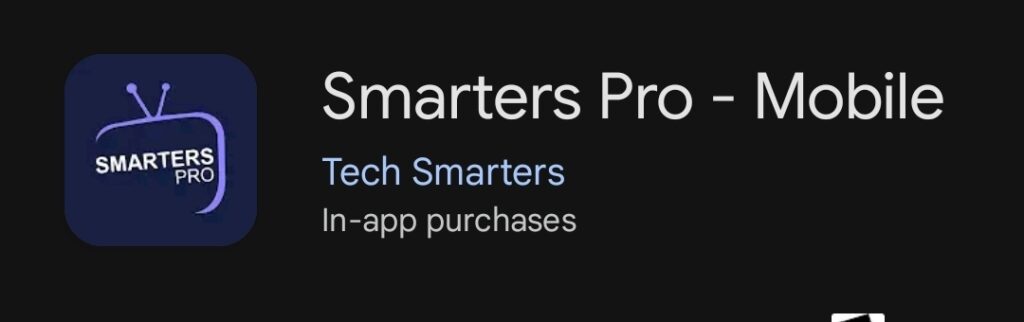
1)Download and install IPTV Smarters Pro.
PLEASE NOTE: These are third party apps. The apps are needed in order to stream our content. You can also use any IPTV player you like by simply searching “IPTV” in the app store. Some require a subscription, but usually only around $10 USD for lifetime.
2) After installation, simply log in with your access data (user name and password).
Disclaimer: IBTV Prime is an independent platform. Content availability, formats, and access may change without notice. IBTV Prime is not affiliated with any studios, broadcasters, or rights holders unless explicitly stated.